Use your login credentials to access the Payzerware dashboard.
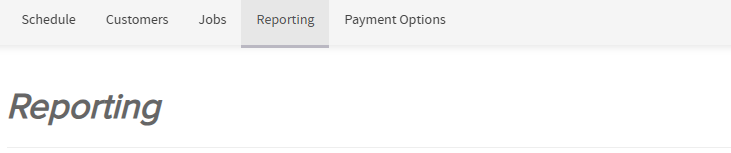
At the top banner of the dashboard, click on the Reporting tab.
a. Open the Customers Section
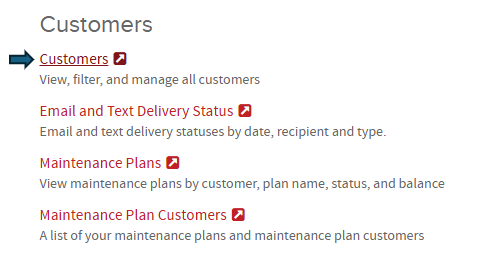
Within the Reporting area, locate the section labeled Customers and click on it.
b. Adjust Report Filters
Update the filters to ensure you’re capturing all customer data:

Set the Customer Creation Date to include the earliest possible date through today.
Set Maintenance Plan Status to All.
Set Customer Type to All.
Set Customer Status to All.
Ensure Locations Included is set to All Locations.
c. Export the Customer Report
Once filters are set:
Click the Download button at the top right of the report view.
Select Crosstab from the dropdown menu.
Choose Customer Report.
Select your preferred file format: Excel or CSV.
Save the file with a clear and descriptive name, such as: Customer_Report_Payzerware_2024.xlsx.
a. Open the Total Sales Report
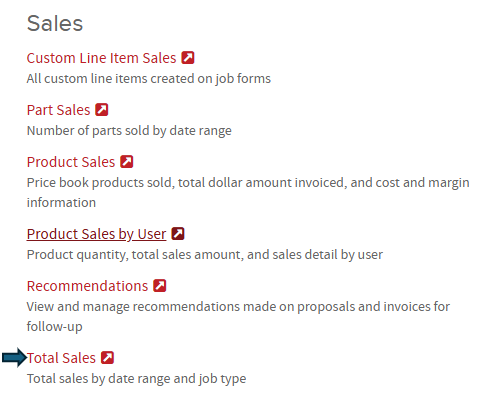
From the Reporting tab, scroll down to the Sales section and select Total Sales.
b. Adjust Report Filters
To ensure all invoices are included:
Set the Date Range to go back as far as possible through today.
Set Job Type to All.

c. Export the Invoice Report
Once filters are set:
Click the green download icon at the top right of the report view.
Select Excel as the download format.
Save the file with a descriptive name, such as: Invoice_Report_Payzerware_2024.xlsx.
If you experience any issues while generating or exporting reports, check that filters are properly set and that you have appropriate access permissions. For additional help, contact Payzerware support or refer to their help resources.
Let me know the next software when you're ready — I’ll keep the same tone and layout!
4o
