This SOP explains how to use the Field Service Import feature in the Stochastic Marketing App within Hub+ to upload customer files and invoice files for campaign creation.
Applies to all internal employees who prepare and upload customer and invoice data into the Stochastic Marketing App.
The Field Service Import tab under Uploads is used for:
Uploading customer files containing active customer data for targeting.
Uploading invoice files containing recent invoice data for campaign generation.
Currently:
Only ServiceTitan is supported as the software package. However, you may use the file format below to import other field service software’s data.
Only one trade can be imported at a time.
Access to Hub+ with permissions to use the Stochastic Marketing App upload functions.
Files must be in CSV, XLSX, or XLS format.
Files must contain all template columns for the selected import type.
Required fields must have data populated.
Non-required fields may be left blank, but the column headers must remain in the file.
The customer file must include all columns below.
Only the required fields must have data populated.
Required Fields (must contain data):
Customer Name
Street
City
State
Zip
Member Status
Other Columns (can be blank but must be present):
Customer ID
Customer First Name
Customer Last Name
Customer Phone Numbers
Customer Phone Number Primary
Unit
Country
Membership Type
Club Member Status
⚠ Note: Removing any column will result in upload failure.
The invoice file must include all columns below.
Only the required fields must have data populated.
Required Fields (must contain data):
Customer ID
Invoice Date
Invoice #
Customer Name
Customer First Name
Customer Last Name
Location Street Address
Location City
Location State
Location Zip
Invoice Total
Other Columns (can be blank but must be present):
Any additional template columns provided in the import format.
⚠ Note: Removing any column will result in upload failure.
Log in to Hub+.
Open the Stochastic Marketing App.
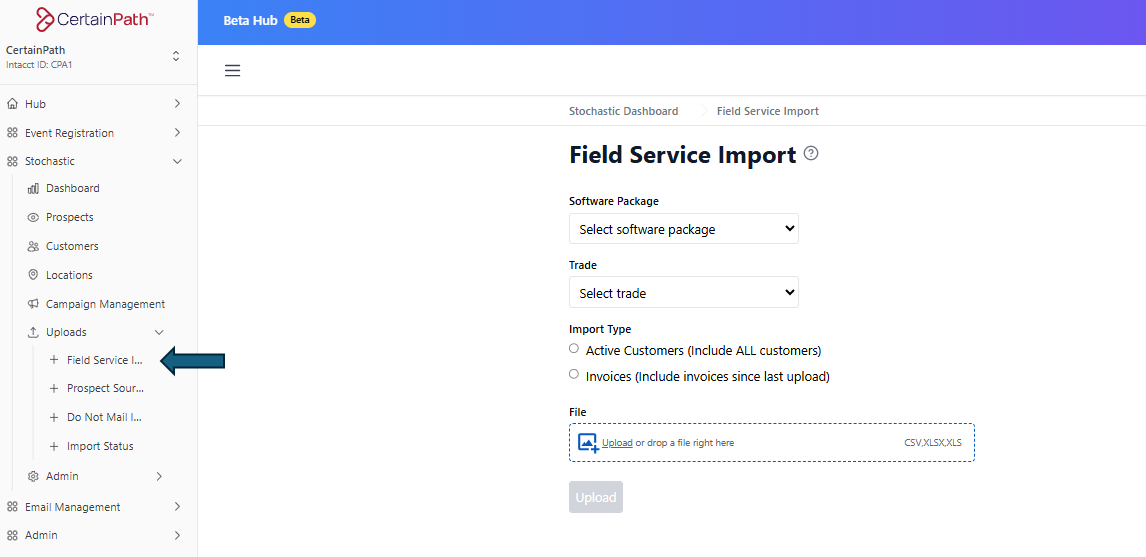
Go to the Uploads section.
Click on Field Service Import.
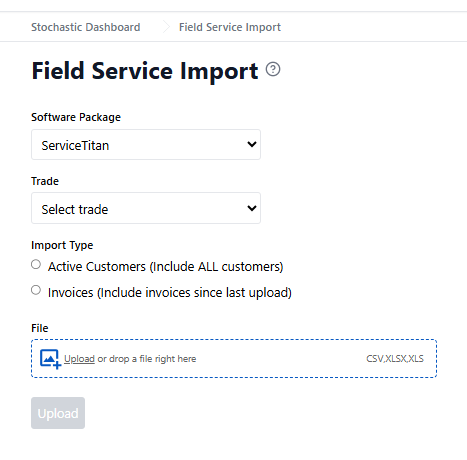
In the Software Package drop-down, select ServiceTitan.
(Currently the only supported option.)
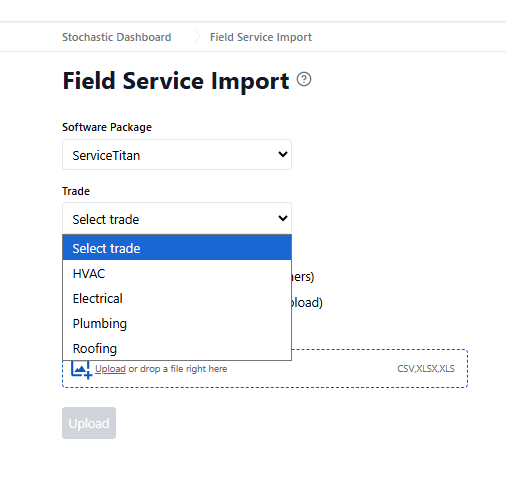
Choose the trade for the company data you are importing.
Only one trade can be selected per upload.
For companies with multiple trades:
Customer Files: Import the active customer list for the primary trade first.
Invoice Files: Import each trade’s invoices separately, selecting the correct trade each time.
Select:
Active Customers (include all customers) – For customer file uploads.
Invoice File (include invoices since last upload) – For invoice file uploads.
Click Choose File and select your prepared file.
Ensure the file format is CSV, XLSX, or XLS.
Verify the file contains all required columns and required fields are populated.
Click Upload.
All columns must remain in the file — do not delete or rename them, even if data is blank.
Separate by Trade: Always upload data for one trade at a time.
Accurate Data: Verify data before uploading to avoid errors in campaign targeting.
Invoice File Timing: Invoice imports should contain invoices since your last successful upload.
Use the provided import templates for both customer and invoice files.
Keep a saved copy of every file you upload for auditing.
Use consistent naming conventions (e.g., CustomerFile_Companyname_MMDDYYYY or InvoiceFile_Companyname_MMDDYYYY).
Schedule uploads on a regular basis to keep campaign data fresh.
If you encounter errors:
Contact: [email protected]
Provide:
A copy of your file
The trade and import type selected
The date and time of upload
Any error messages received
