This guide walks you through how to create and manage users within your Hub account. It also explains each available user role and the level of access associated with each role. This resource is intended for Owners, General Managers, and other authorized users responsible for user administration.
Section 1: Overview of User Creation
Only users assigned the Owner or General Manager role can create and manage users within a Hub account. These roles are responsible for ensuring employees have the appropriate level of access based on their job function.
Section 2: Accessing User Management
Opening the Index Menu
From anywhere in the Hub, select the Index Menu located in the top-left corner of the page.

Scroll to the bottom of the Index Menu to the Administration section.
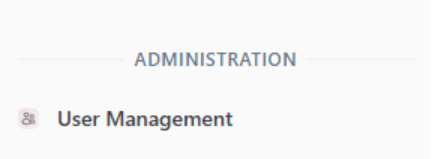
Select User Management
Section 3: Navigating the User Management Page
Within the User Management section, you can:
Create new users
Edit existing users
Search for users within your Hub account
Searching for Existing Users
At the top of the User Management page, search fields allow you to locate users by:
First Name
Last Name
Email Address

Section 4: Editing an Existing User
Locate the user you wish to edit.
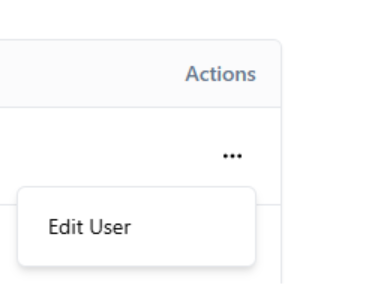
In the Actions column, select the three-dot menu to the right of the user’s name.
Choose Edit User.
Update the user’s information or role as needed and save your changes.
Section 5: Creating a New User
Starting the User Creation Process
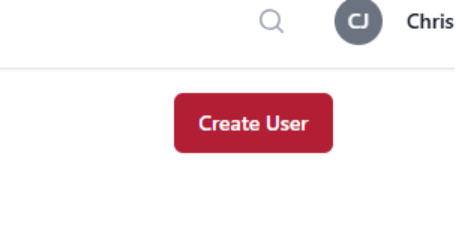
From the User Management page, select Create User.
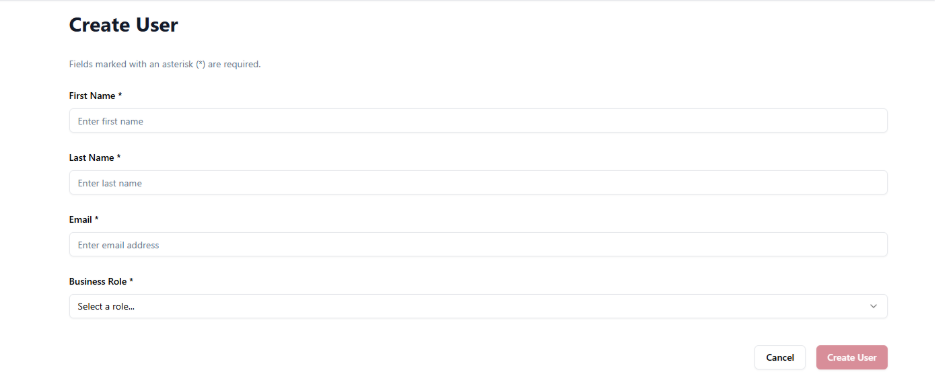
A new user creation form will open.
Entering User Information
Complete the required fields:
First Name
Last Name
Email Address
Business Role
The Business Role determines what areas of the Hub the user can access.
Section 6: User Roles and Permissions
Below is an overview of each available user role and the access level associated with it.
Owner / General Manager
This role has the highest level of access within the Hub.
Permissions include:
Create, edit, and manage users
Share resources with employees
Access the Partner Network
Access the Scoreboard
Access the Training Portal
Access the QuickBooks Data Connector
View Financial Reports generated through the QuickBooks connection
Access Stochastic Marketing options (if enabled)
Manager
The Manager role has broad access to operational and learning resources.
Permissions include:
Access the Partner Network
Access the Scoreboard
Access the Training Portal
Access the Resource Library
Access News and Podcasts
HR / Recruiting
This role has base Hub access with a focus on informational and training resources.
Permissions include:
Base Hub access
Access the Resource Library
Access News and Podcasts
Finance
The Finance role has access to reporting and learning tools.
Permissions include:
Access the Partner Network
Access the Training Portal
Access the Scoreboard
Access the Resource Library
Access News and Podcasts
Technician
This role is intended for field and technical staff.
Permissions include:
Base Hub access
Access the Resource Library
Access News and Podcasts
Call Center
This role supports customer-facing and service staff.
Permissions include:
Base Hub access
Access the Resource Library
Access News and Podcasts
Sales
This role supports sales-focused users.
Permissions include:
Base Hub access
Access the Resource Library
Access News and Podcasts
Section 7: Best Practices for User Management
Assign roles based on job responsibilities, not job titles alone
Review user access periodically to ensure accuracy
Limit Owner/General Manager access to only those who require full administrative control
