This guide explains how to access, search, filter, and utilize the Resource Library within the Hub. The Resource Library contains learning materials, documents, videos, and other resources designed to support employees across all roles.
Section 1: Accessing the Resource Library
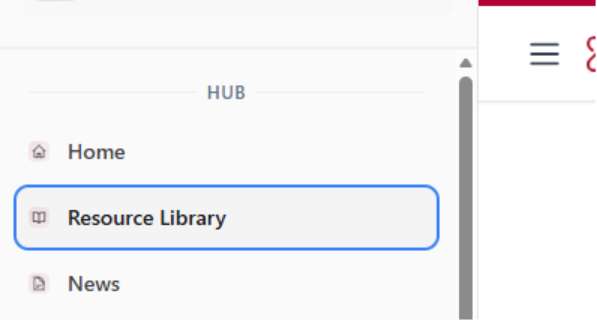
From anywhere in the Hub, open the Index Menu by selecting the three-bar icon in the top-left corner of the page.
In the Index Menu, select the tab labeled Resource Library.
The Resource Library will open with featured content and filtering options available.
Section 2: Overview of the Resource Library
The Resource Library includes a variety of tools and filters to help you efficiently locate relevant content for your company or team. Resources may include:
Articles
Downloadable files
Partner pages
Learning series
Videos
Favorites
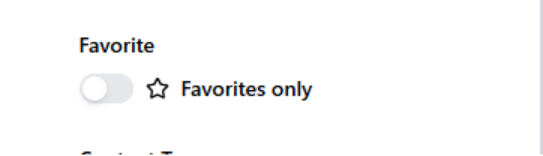
You can mark resources as favorites for quicker access in the future.
Select the star icon on a resource to add it to your Favorites.
To view only favorited resources, toggle Favorites Only in the filter panel.
Content Type Filters
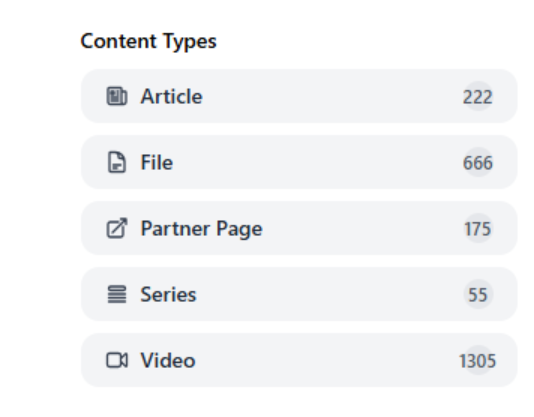
Use Content Type filters to narrow results by specific resource formats. You may select one or multiple content types:
Articles
Files
Partner Pages
Series
Videos
Selecting one or more content types will refine the resources displayed on the right side of the page.
Trades Filter
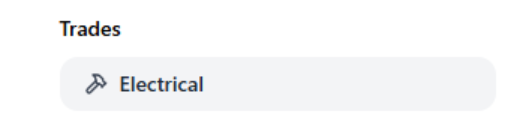
The Trades filter displays all trades associated with your company.
Select one or multiple trades to view resources specific to those trade types.
Results will update automatically based on your selections.
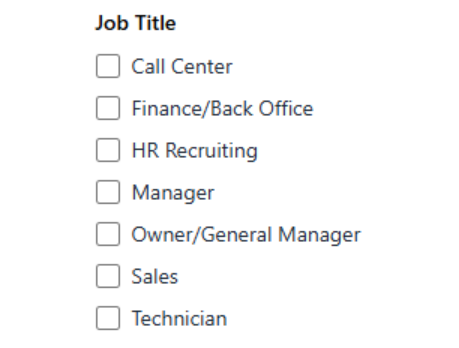
Job Title Filter
You may also filter resources based on job role to find content relevant to specific positions.
Available Job Title filters include:
Call Center
Finance / Back Office
HR / Recruiting
Manager
Owner / General Manager
Sales
Technician
Applying one or more job title filters will further narrow the resources shown.
Category Filter
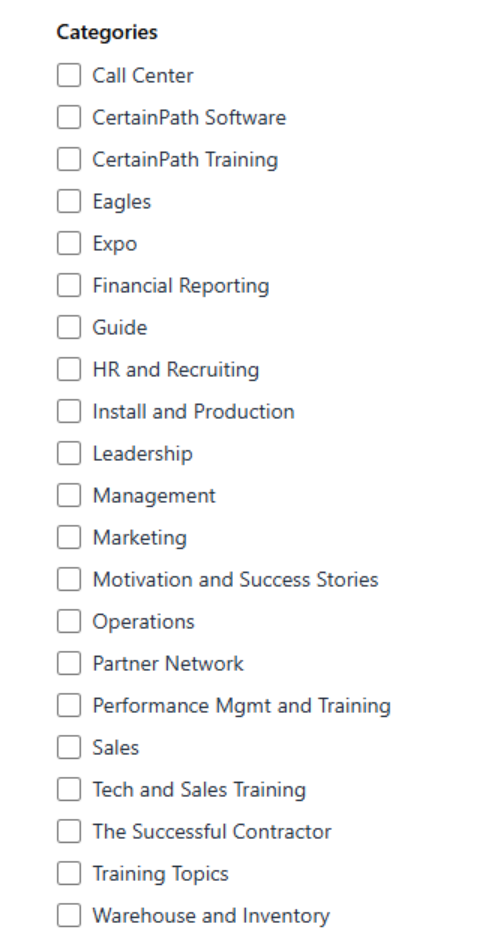
The final search filter allows you to refine resources by Content Category.
Select one or multiple categories to display resources related to those topics.
Section 4: Viewing and Sorting Resources
Featured Resources
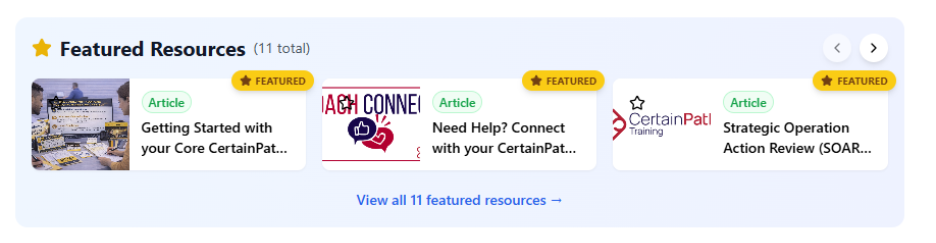
At the top of the Resource Library page, you will see Featured Resources.
Featured Resources are highlighted by CertainPath for easy access.
Use the navigation arrows to scroll through featured items.
Select View All Featured Resources to see the full featured list.
All Resources
Below the Featured Resources section, all available resources are displayed.
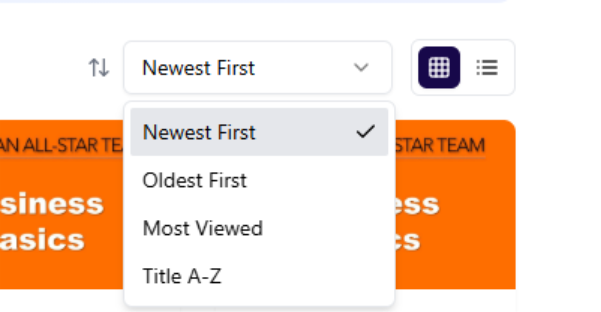
You can sort resources using the following options:
Newest First
Oldest First
Most Viewed
A–Z (Alphabetical)
You may also choose how resources are displayed:
List View
Card View
Section 5: Opening and Exploring a Resource
Select a resource by clicking its title or image.
The resource details page will open.
On the resource details page, you will find:
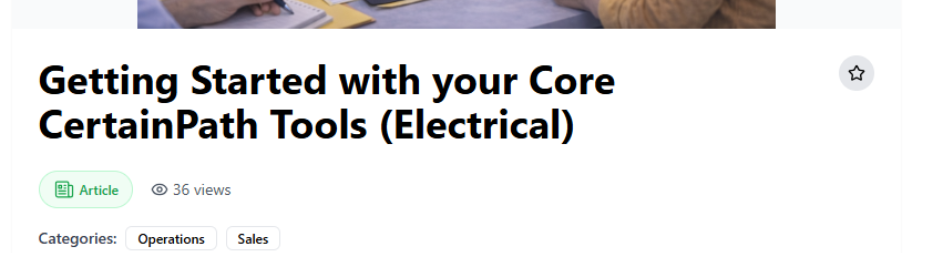
A Favorite (star) icon near the title to add or remove the resource from Favorites
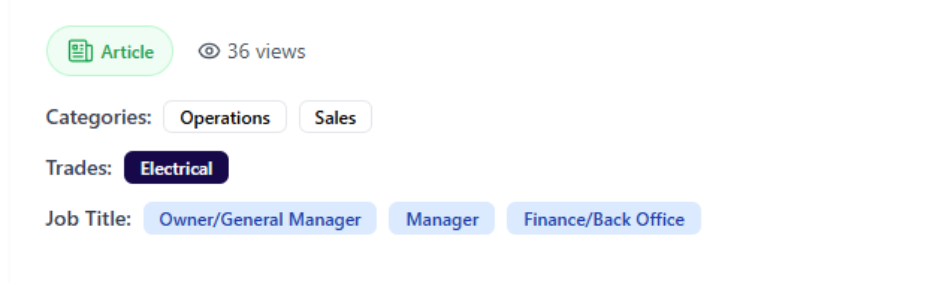
Associated categories, trades, and job titles that align with available filters
Section 6: Downloading and Accessing Linked Materials
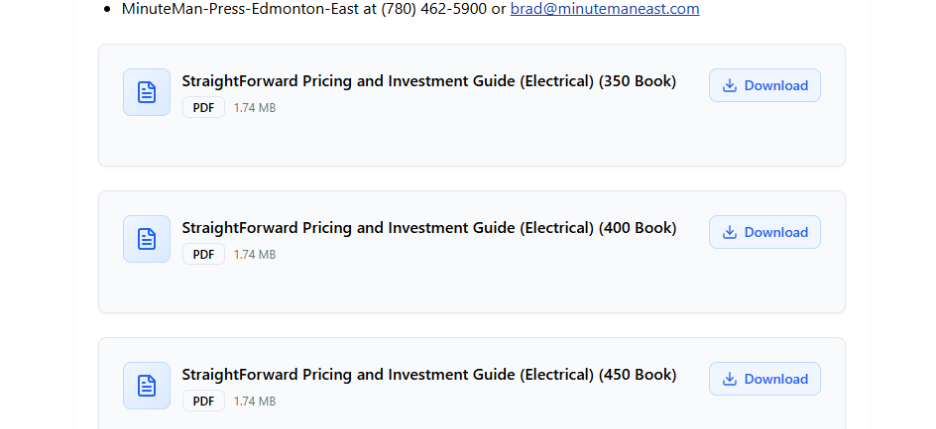
If a resource includes additional documents or linked materials:
These will appear below the main resource content
A Download link will be available when applicable
Selecting Download will save the file directly to your computer.
Section 7: Best Practices for Using the Resource Library
Use filters together to quickly narrow large result sets
Favorite frequently used resources for faster access
Sort by Most Viewed or Newest to discover popular or recently added content
