This guide provides a step-by-step process for generating and downloading customer list and invoice reports from Housecall Pro. Follow these instructions to ensure the data is retrieved accurately and exported in the appropriate format.
Use your login credentials to access the Housecall Pro dashboard.
At the top of the dashboard, you will see a tab labeled Customers. Click on it.
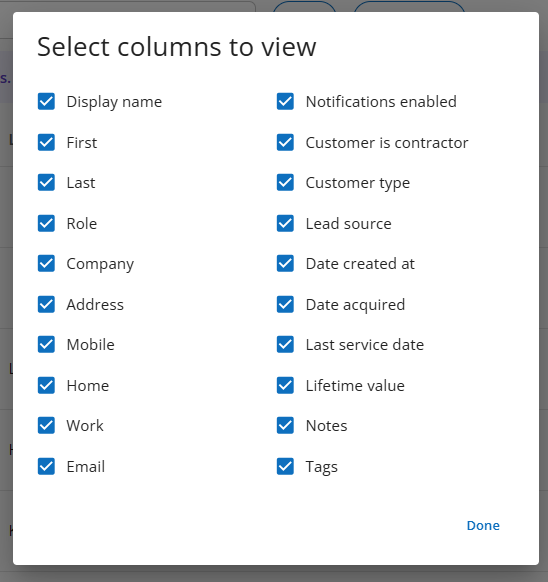
Once on the Customers tab, click Edit Columns.
Select all column options to ensure complete data capture, then click Done.
Next to Edit Columns, click the Filters tab.
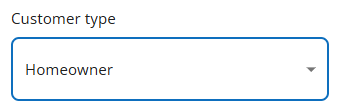
Scroll to the bottom and locate Customer Type.
Select Homeowner
Do not select Business
Ensure no other filters are applied.
Verify the customer count displayed on the screen looks accurate — Housecall Pro will display a total count for reference.
Click the Actions button.
Select Export from the dropdown.
You will receive an email containing a CSV file of all your active customers.
Save the file with a descriptive name, such as CustomerList_2026.csv.
On the left-hand side of the same screen, select Invoices.
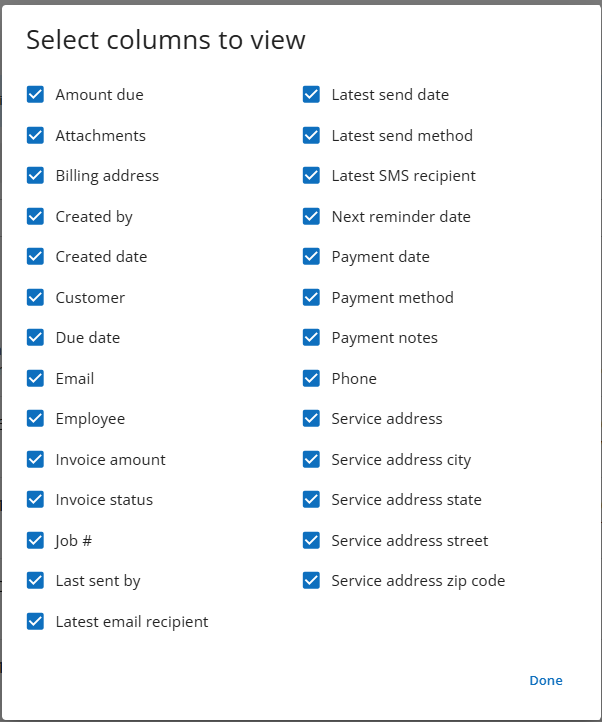
Click Edit Columns and check off each column option to include all available fields.
No filters need to be applied for this report — skip the Filters tab.
Scroll to the right side of the screen and click Actions.
Select Export from the dropdown.
You will receive an email containing a CSV file of your invoices.
Save the file with a descriptive name, such as Invoices_2026.csv.
Once both files (Customer List and Invoices) have been received via email, send both files to
[email protected].
If you encounter any issues while generating or exporting reports, please contact Housecall Pro support or consult their help resources for assistance.
