Before you do anything else:
Download the file to your computer
Rename it using the year and your company name
Example: 2026 Acme HVAC Home Services
Save it somewhere secure, and somewhere you can easily find and open every day
This is where you set your revenue goals for the year.

Since the report currently works for one trade, you will only choose one trade from the dropdown.
Select your trade from the pick list
If you have last year’s revenue by month, enter it where the file asks
Any cell that needs your input will be yellow
Enter your target revenue increase for the new year in the target cells
Example:
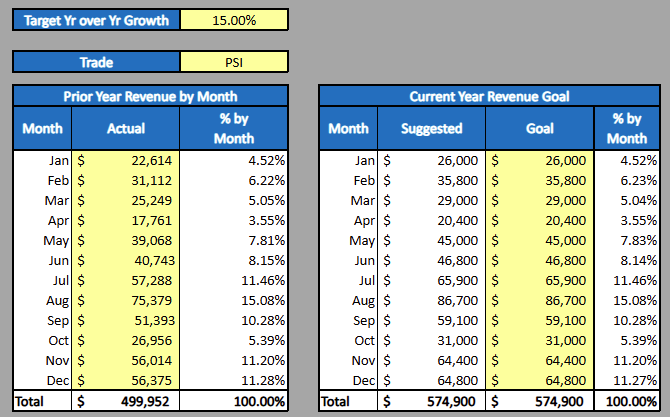
Important notes:
If you don’t have accurate prior year revenue, enter zeros
You can also enter your revenue goals month-by-month directly
Try to consider seasonality (some months are naturally stronger than others)
There is a check on the SetUp tab that compares your annual revenue goal to what the file calculates using your performance metrics
These numbers should be very close
A small difference is normal due to rounding (example: you can’t run 9.5 calls — it will round to 9 or 10)
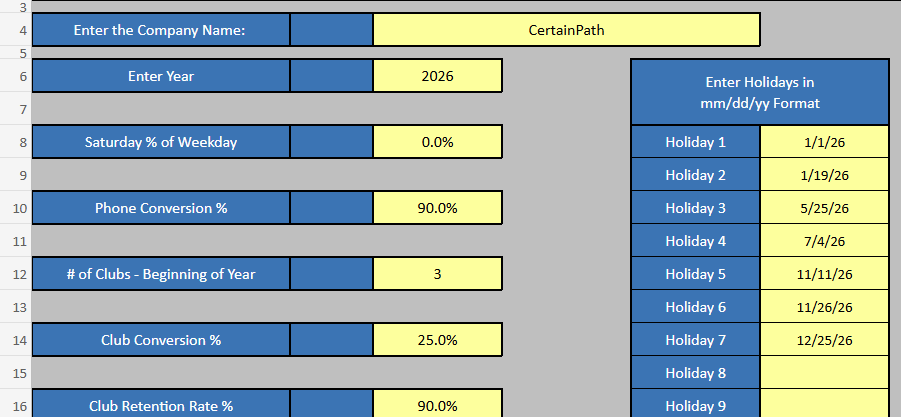
The SetUp tab is where you enter your company details and set the goals that drive the report.

Yellow cells mean you need to enter information.
Enter your company name in row 4
Enter the year you want to begin tracking in cell D6 (format: yyyy)
You will also set:
Saturday revenue percentage (cell D8)
This tells the file how Saturday compares to a normal weekday
Default is 50%
Enter any holidays your business is closed (cells G8:G17)
This makes your targets show 0 on those days
Enter your call conversion rate in cell D10
This is the percent of calls that turn into booked appointments
Club membership targets:
Enter your club goals on rows 12, 14, and 16, including:
how many members you expect to start with
your conversion rate
your annual attrition rate (how many cancel each year)
Revenue categories:
You will assign your revenue into categories like: You will assign these categories under your service types in the software settings.
Maintenance
Service
Replacement
Other
Enter your percentages for the main categories
The last category will automatically use whatever percentage is left
Then enter:
average invoice amounts for each category
lead conversion rates
Once complete:
the performance metrics automatically update
the revenue number in cell G62 should tie back to your Annual Revenue Goal (or be very close)
it won’t be exact because the file uses whole numbers for calls/jobs
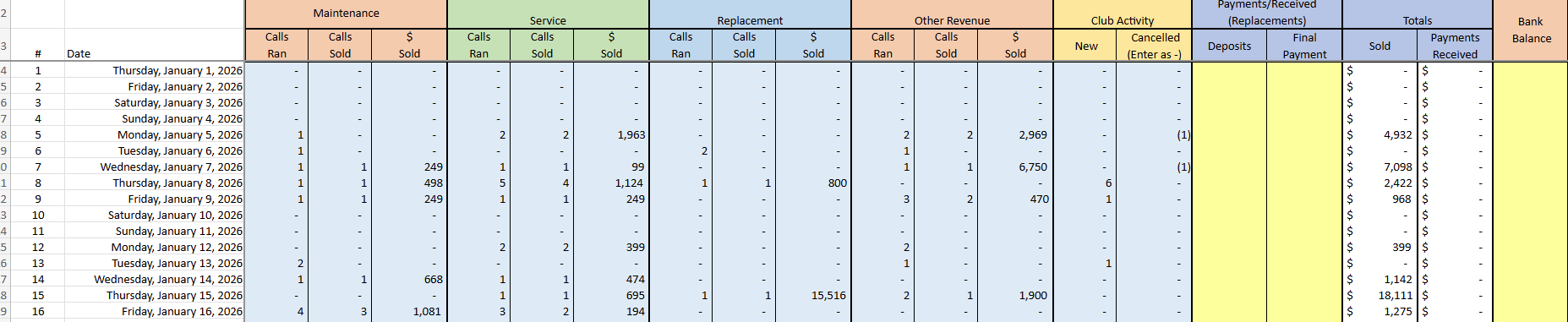
These tabs are where you enter your actual daily numbers.
The date you’re working on is listed in column A
Yellow cells require your input

Enter your call activity for the day this is only for other calls. All other calls will be logged by the DMER overnight.
This tab tracks:
revenue by type
money received for the day
It separates:
deposits
final payments
You’ll also see:
total revenue and total cash received
club activity tracking
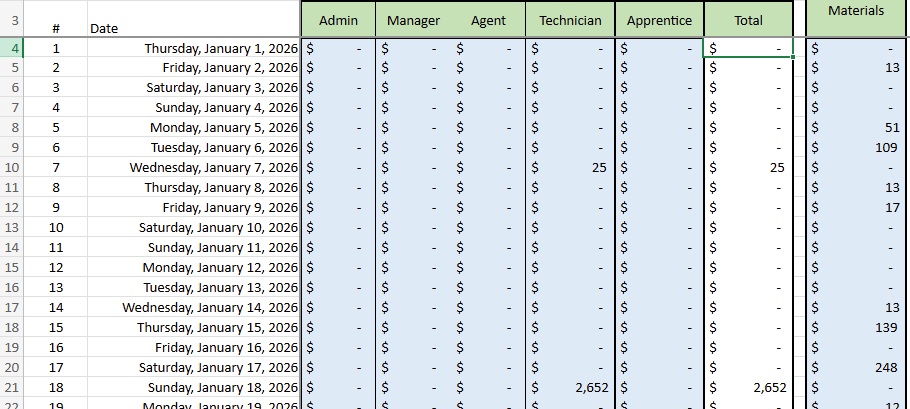
*Reminder only edit the yellow fields. Do not add any columns.
Enter daily wages in columns C–F
These wages automatically feed into the DMER tab (rows 185–189)
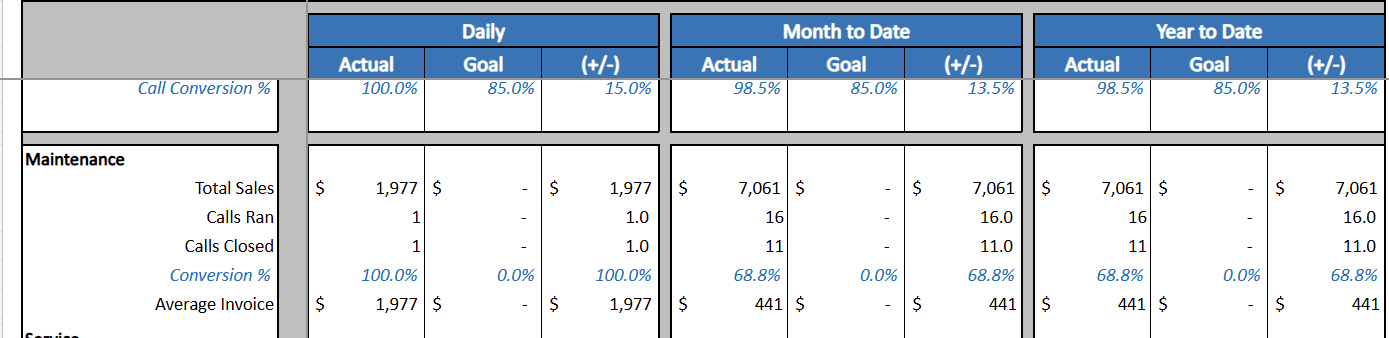
Once your SetUp and daily numbers are entered, the DMER tab becomes your main daily dashboard.
It helps you see what’s going well and what needs attention — whether that means celebrating a win or correcting something.
Adjust the date at the top using the dropdown in rows 1–2
You’ll see:
Daily
Month-to-Date (MTD)
Year-to-Date (YTD) views
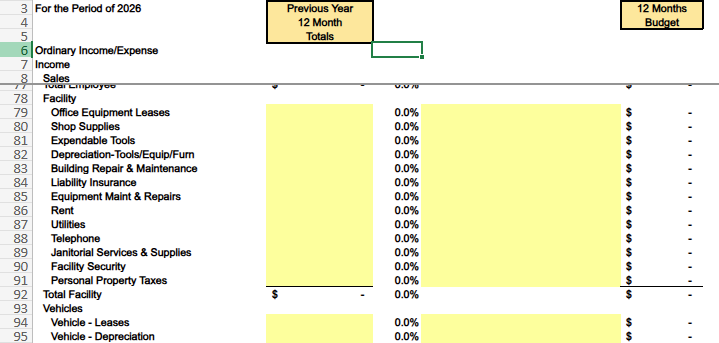
The Budget Projections tab helps you build your budget for the new year.
Fill in the yellow highlighted cells
Update the budget numbers in F90 – J179
You can enter them as:
annual totals, or
a percentage of monthly revenue
Column J lets you spread expenses across the year automatically
Example: rent, leases, etc.
Other notes:
Monthly dollar amounts can be overwritten if needed
If you overwrite a formula, the cell turns yellow
Row 21 is an extra revenue line for income not included in your main setup
Any cells in gray cannot be changed
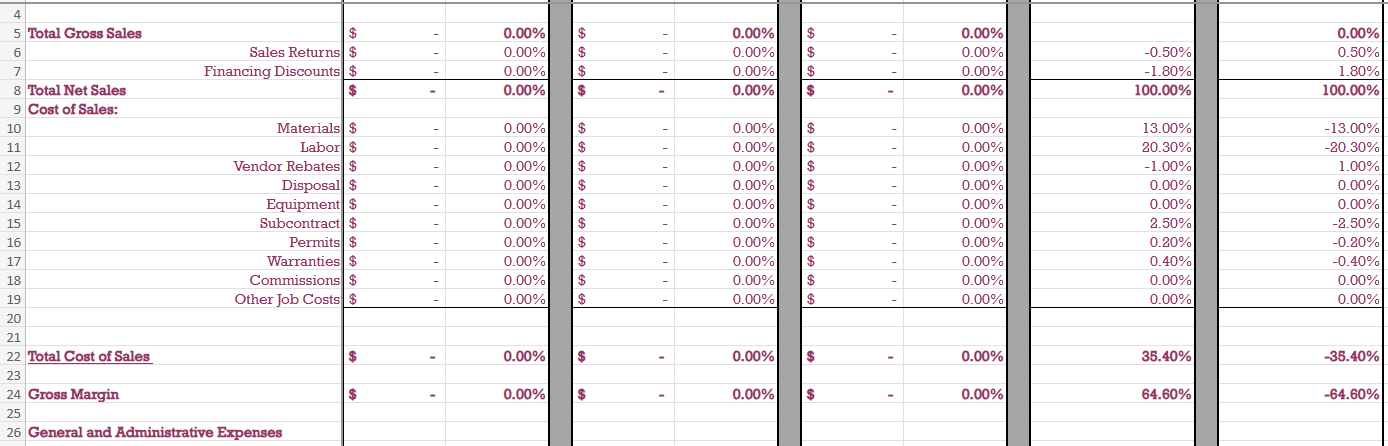
This tab is a summary that compares:
your budget
vs.
last year’s numbers
It’s mainly used as a quick “does this look reasonable?” check.
No changes are made on this tab

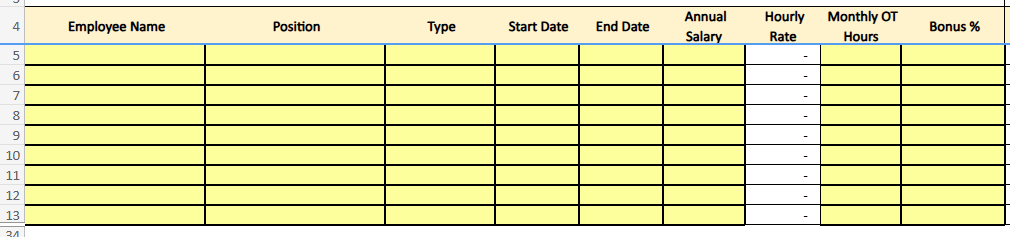
This tab helps you budget:
administrative payroll (non-field employees)
related payroll taxes
This information feeds into the Budget Projections tab.
Start entering data in cells A5 – I33 (if applicable)
Important note:
The file budgets payroll by whole months, not exact days
For best results:
use start dates on the 1st of the month
when ending a position, use the 1st of the following month
Example: if someone finishes in August, use an end date of 9/1
Also:
Update your State Unemployment Insurance (SUI) tax rates in cells B52 and D52