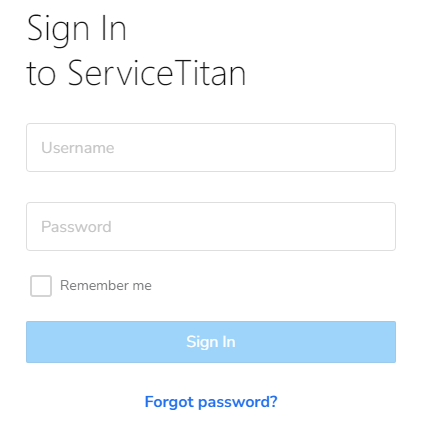
Use your login credentials to access the ServiceTitan dashboard.
At the top of the dashboard, you will see a tab labeled Reports. Click on it.

In the search bar at the top of the Reports tab, type "Customer List" and select it from the dropdown results.
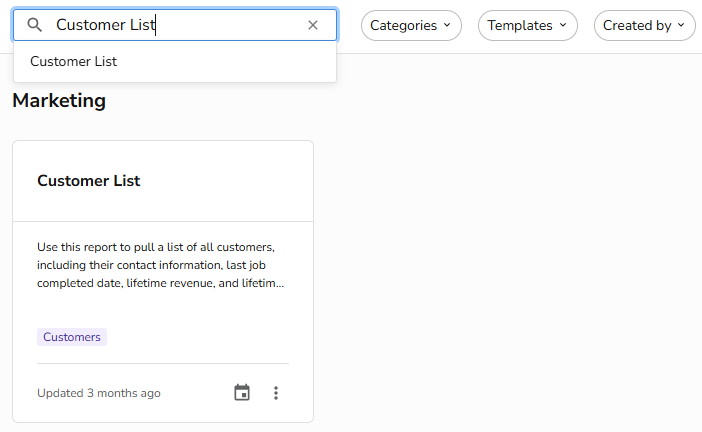
Click to open the report.
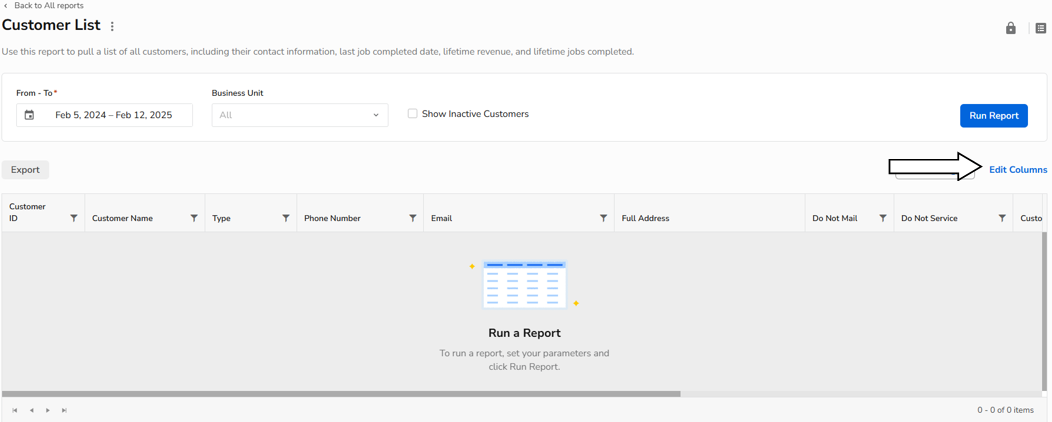
Set the Date Range to capture all customer data by expanding the range as far back as possible.
Before running the report, ensure the correct columns are included by selecting Edit Columns and adding the following fields:
Customer ID
Customer Name
Street Address
City
State
Zip Code
Unit
Member Status
Click Run Report.
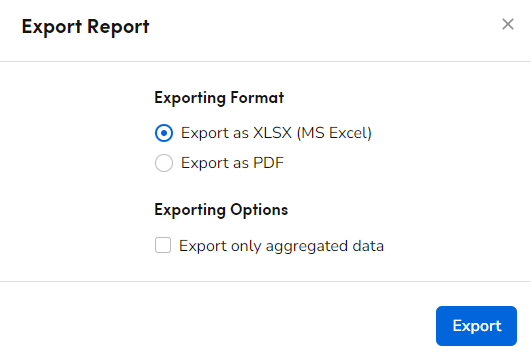
After running the Customer List report, click the Export button.
Choose to Export as XLSX (MS Excel) to ensure the file is in the correct format for uploading.
Resave the report with a descriptive name, such as CustomerList_2024.Xlsx.
In the search bar at the top of the Reports tab, type "Invoice By Date" and select it from the dropdown results.
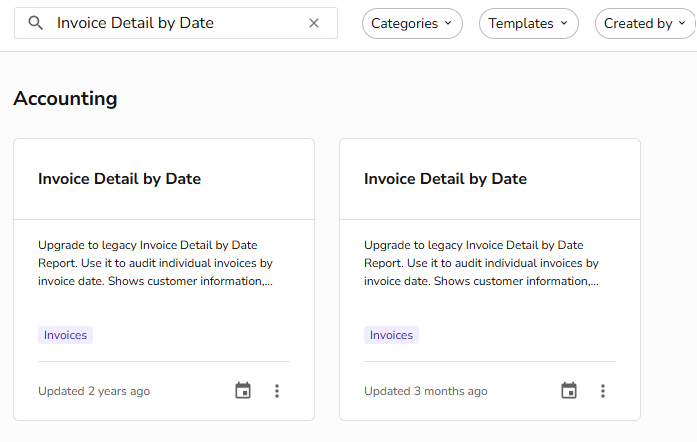
Click to open the report.
Update the Date Range fields to reflect the oldest available date up to the current date.
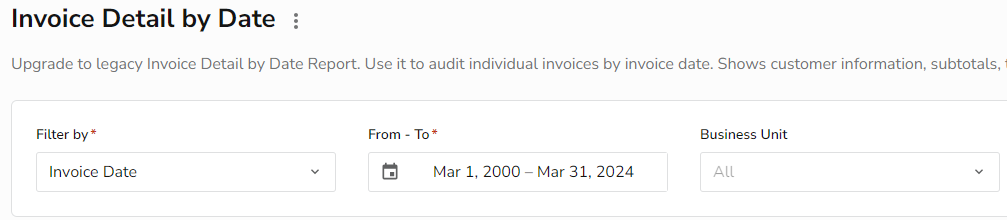
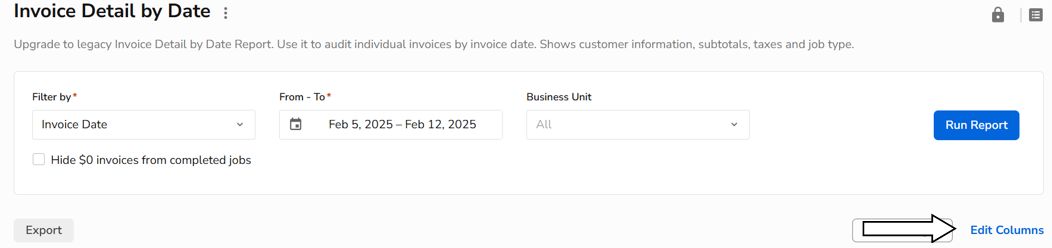
Before running the report, ensure the correct columns are included by selecting Edit Columns and adding the following fields:
Invoice Business Unit
Invoice #
Invoice Date
Customer ID
Customer Name
Location Street
Location Unit
Location City
Location State
Location Zip
Total
Click Run Report.
Once the Invoice By Date report is ready, click Export.
Select Export as XLSX to download the report in XLSX format.
Save the report with an appropriate name, such as InvoicesByDate_2024.xlsx.
If you encounter any issues while generating or exporting reports, please contact ServiceTitan support or consult their help resources for assistance.
